


Be a loving person rather than in a love relationship because relationships happen one day and disappear another day. They are flowers; in the morning they bloom, by the evening they are gone. But people find it very difficult to be a loving person, a loving soul, so they create a relationship and be fool that way that "Now I am a loving person because I am in a relationship". And the relationship may be just one of monopoly, possessiveness and exclusiveness. The relationship is needed only because love is not there. Relationship is a substitute. Become alert! Relationship destroys love, destroys the very possibility of its birth.
Showing posts with label Cloud Storage. Show all posts
Showing posts with label Cloud Storage. Show all posts
Wednesday, 19 February 2014

Announced a few weeks ago, Microsoft is officially flipping the switch on transitioning SkyDrive into OneDrive. But it's not just a name change — the service boasts new features including camera uploads on Android, a new collaboration tool and better video handling.
Microsoft was forced to change the name of its cloud storage service after it lost a legal dispute with Sky Broadcasting in the U.K. It settled on the name OneDrive to emphasize the services as the "one place" for all of your content, and now that the update is rolling out, it's adding functionality as well as storage.
First is automatic camera uploads on mobile. While the feature has existed on the SkyDrive apps for iOS and Windows Phone for a while, with the OneDrive switch it's coming to Android. At the same time, Microsoft is throw in 3GB of extra storage to anyone who turns on the feature (existing users will still get the bonus).
More way to get Storage
Camera uploads aren't the only way to get more storage.Everyone who signs up for a OneDrive account gets 7GB free, but if you invite others and they accept, you're rewarded with 500MB of of extra storage for each friend who redeems the invitation, for a maximum of 5GB. That's similar to Dropbox, although on that service the maximum bonus is 16GB.
With the OneDrive change, the service is also getting a couple of back-end changes that'll help specific features. First, collaborating on Office 365 documents is even more real-time than before, with character-by-character editing — characters will appear to other users immediately as you type.
OneDrive handles video better as well. Although high-quality video can be a bandwidth hog, leading to lags, OneDrive will implement MPEG-DASH, which dynamically adapts bandwidth conditions, so those cat videos you share won't take as long to stream.
Finally, Microsoft is introducing monthly payment options for its service, which was previously sold as a yearly service. The company is also giving away 100GB of free OneDrive storage to 100,000 customers — the equivalent of 10 petabytes of storage — to promote the new name.
Although today is the official switchover to OneDrive, you'll still see the SkyDrive branding in a few places. The Windows 8.1 app will remain SkyDrive until the next major Windows update. Also, Office 365 apps will still call it SkyDrive until the next service pack update.
OneDrive is the latest in a long list of names that Microsoft has had for its file-sharing service. Here's a visual summary of the many aliases used by the service formerly known as SkyDrive:
Friday, 14 February 2014
This tutorial is all about how you can secure your data on Cloud Storage. It will help you encrypt your data before you upload it on cloud storage using Cloud Fogger. So here we go.

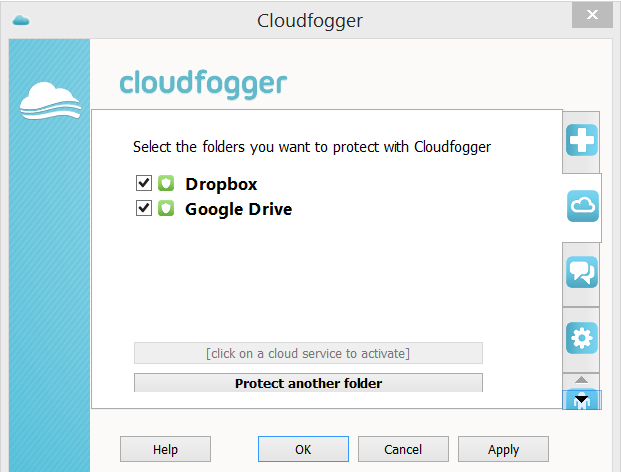
Step-2: Select the folder you are using for syncing with cloud storage (Google Drive, Sky Drive, and Dropox etc.)


There are many Free Cloud storage providers including Google Drive, Dropbox, Box, RapidShare, Amazon Cloud Drive, Microsoft SkyDrive and many more. These services have a limitation that all data is unencrypted, or even if it is encrypted, the encryption keys are still generated by the company's software, meaning the company still has an access to your data.
So as an end user, we must think about the security and privacy of our data. We should first encrypt our files on the system level and then upload a copy of it on the cloud storage.
For this a robust and highly user friendly tool called CloudFogger is available at free of cost and for using it you even need not to be a GEEK. It provides encryption of 256 bit AES for your files.
Easy to Install and Easy to use: Follow the steps to crypt your files using CloudFogger:
Step-1: Download and Install CloudFogger from its website. Open and create an account first:


Step-3: Now you just need to drop your files into that folder. A Small Green overlay-symbol will appear on your files, i.e. Your files are now encrypted and ready to upload/sync with your Cloud storage account. That's it!
The New file extension for all encrypted files will be ".cfog", that can be accessed only if decrypted using your own CloudFogger keys.
You can also encrypt documents manually, just by right clicking it, select cloudfogger->Fogg file(s) and you can access the file yourself using a virtual drive created by cloudfogger without decrypting each file.
This client-side encryption ensures that nobody will be able to access your protected documents and files without your password. RSA private keys are stored on the Cloudfogger server to allow convenient installation of the product on several devices, but all keys are again encrypted with 256 bit AES based on the user's password and the company claims that user passwords will be never ever transmitted to their Cloudfogger servers.
Each file uses its own, unique AES key, that allows sharing files with different people, so you can add the email addresses of your friends, if you want them to allow decrypt your private document, image or etc.
For most users, finding a truly protected Cloud service can be a challenge, as many services obviously have security gaps that leave data wide open to third party attacks, leaks, or hacking.
CloudFogger is an application available for Windows, Mac, Andoird, iOS. There are many more similar tools and services that are available i.e. SpiderOak, Mozy, Carbonite, IDrive or BoxCryptor and many more.
However, CloudFogger is not an open source software, so there is an alternate available called "CryptSync", which is an open source tool for encrypting the files before uploading to cloud server and it also does not store your files on the developer’s server like CloudFogger.
Subscribe to:
Posts (Atom)
Popular Posts
-
OPEN MS-DOS Source Code Early tech fans might remember the good 'ol days of Microsoft MS-DOS, the company's first operating s...
-
 Hello folks, How are you all. Today I'm here to bring you on of the most amazing hacking news or trick you can say. So let's begin ...
 -
 Hello, there again some poetry. This time i wrote this for someone who is close to my heart. Not close indeed very much close to me. I...
 -
 Hello there, Do you know when you submit a page on stumble upon then what happen. Under which process it goes?. Um, No. Oh, You need not t...
 -
Medium Medium, the blogging platform created by Twitter co-founder Evan Williams, launched its first mobile app this week. The app let...
-
Hello there, Welcome to our blog. How you all are, Hope you all doing great. On our blog you will find support for tech, hacking and so...
-
Google has begun a Glass at Work initiative, asking businesses how they're working with Glass, and the kinds of applications they...
-
Hello folks, this is my first post. M gonna explain about Pat and will give configuration for it with an example below. Port Address...